Editor's Note: Take a look at our featured best practice, Effective Communication with Virtual Teams (23-slide PowerPoint presentation). The number of people working remotely has been increasing progressively across the globe. An employee benefits report narrates that around 60% companies in the US offer telecommuting opportunities. According to Upwork, freelancers and contractors have increased by 81% from 2014 to 2017. [read more]
* * * *
Remote work makes it easier to collaborate across cities and time zones. It also means business information is accessed from home networks, shared workspaces, hotels and devices outside the traditional office.
Consider a familiar situation: an employee downloads a customer spreadsheet to a personal laptop, shares a document using a public link and later receives an urgent email requesting updated payment details. None of these actions is unusual, but each can create a security risk.
Protecting business data does not require every company to build a large IT department. It starts with practical rules employees understand and managers consistently enforce.
Here are seven ways to make remote working safer without creating unnecessary complexity.
1. Identify the Business Data That Needs Protection
Before purchasing security software, find out where important information is stored and who can access it.
Start with customer records, financial documents, contracts, employee information and other files whose disclosure could harm the business.
For each category, answer three questions:
Where is the information stored?
Who genuinely needs access?
What would happen if it were lost, stolen or accidentally shared?
Avoid allowing every employee unrestricted access simply because it is convenient. A marketing contractor, for example, may need campaign materials but not payroll records.
Review permissions when responsibilities change. This approach is consistent with the NIST Cybersecurity Framework 2.0, which encourages organizations to identify important assets, assess risks and establish appropriate security controls.
2. Protect Internet Connections outside the Office
Working from a café or hotel often means relying on a network the company does not control.
First, verify the network name with the venue. Avoid unexpected login pages, suspicious downloads and requests for corporate passwords.
HTTPS already encrypts communications with properly configured websites. A VPN provides an additional layer of connection privacy by encrypting traffic routed through its tunnel between the device and the VPN server.
For everyday browsing on unfamiliar networks, a free VPN for everyday browsing can provide an additional connection-privacy option where organizational policy permits its use.
However, a VPN does not make malicious websites safe or prevent employees from entering credentials into phishing pages. A consumer VPN also does not automatically grant secure access to internal company systems or replace company-managed remote access, multifactor authentication and device security controls.
When handling sensitive business information, follow your employer’s approved connection requirements. If a network seems suspicious, a trusted mobile connection may be preferable.
3. Secure Business Accounts and Verify Unusual Requests
A stolen password can expose valuable company information even when the internet connection itself is protected.
Use unique passwords for business accounts and enable multifactor authentication (MFA), particularly for email, accounting platforms and cloud storage.
Where supported, phishing-resistant authentication methods such as passkeys or security keys provide stronger protection against certain credential-stealing attacks.
Employees also need a simple rule for unexpected requests: verify changes involving money, account access or sensitive information through a separate, trusted channel.
For example, if a supplier emails new bank details, call a previously verified contact number before approving payment.
Apply the same principle to unexpected password or MFA reset requests. Help desks should verify identity through approved procedures rather than relying solely on information a caller might already know.
These habits address risks that VPN encryption alone cannot prevent.
4. Keep Devices and Security Software under Control
A remote-working policy should specify which devices employees may use and what security settings are required.
At a minimum, work devices should have automatic security updates, screen locks, disk encryption and appropriate malware protection.
Avoid installing software from unfamiliar advertisements or download mirrors. Use official developer websites or trusted application stores.
If the business is evaluating VPN software as part of an approved setup, check the provider’s VPN apps for different devices to confirm platform compatibility before testing.
However, installing the same app on every device is not a complete security strategy.
Where supported by an approved device-management system, organizations should consider remote locking, removal of managed business data and application restrictions.
For personal devices, these controls require clear policies, appropriate employee consent and safeguards for personal information.
Define which work activities are permitted on personal devices and how business information must be separated from personal files.
5. Share Documents without Exposing More Than Necessary
Cloud collaboration makes remote work convenient, but sharing permissions are easy to overlook.
Before sending a client proposal, check whether the link allows anyone to open it or restricts access to specific people.
Use named-user access for confidential documents whenever possible. Give recipients viewing permission rather than editing rights unless changes are required.
For temporary collaborators, consider expiring links or removing access when the project ends.
Remember that revoking access to a shared document may not remove copies that recipients have already downloaded.
Also establish one approved location for storing business documents. If employees keep copies across personal email accounts, messaging apps and unapproved cloud drives, the company may struggle to control or recover its information.
A useful monthly exercise is to review externally shared folders and identify links that are no longer needed.
6. Back Up Important Files and Test Recovery
Cloud storage is useful, but file synchronization is not always equivalent to having a separate, recoverable backup.
Accidental deletion, ransomware and account compromise can still disrupt access to business information.
Create a backup schedule based on how frequently critical records change. Keep protected copies separate from everyday working files, with an offline or otherwise isolated copy where appropriate.
Assign responsibility for checking whether backups complete successfully.
Most importantly, test restoration. Begin with a non-sensitive sample file, then periodically test recovery of representative folders or business systems.
Define how much data loss and downtime the business can tolerate, and check whether recovery procedures meet those targets.
A backup that has never been tested provides less assurance than one supported by a documented recovery procedure.
7. Make Incident Reporting and Access Removal Routine
Employees should know exactly what to do if they lose a device, share a file with the wrong person or accidentally approve a suspicious login.
Create a clear reporting route, such as a designated IT contact or manager, and encourage immediate reporting rather than waiting until the next working day.
Define an urgent reporting channel for lost devices, suspected account compromise and accidental disclosure of sensitive data.
Assign someone to assess incident severity and determine whether immediate containment, customer notification or regulatory reporting is necessary under applicable requirements.
When someone leaves the organization or finishes a contract, revoke access at the authorized end time. Review accounts, active sessions, shared folders and third-party services to confirm that permissions have been removed.
Document who can disable accounts and who is responsible for investigating potential security incidents.
Security procedures work best when they are easy to follow during a stressful situation.
A Simple Remote Work Security Checklist
Managers can use this checklist to turn recommendations into repeatable tasks.
Security Check
Responsible Person
Suggested Review
Confirm access to sensitive files
Department manager
When roles change
Check MFA on critical accounts
IT or account administrator
During onboarding and periodic audits
Update and protect work devices
IT or device owner
Automatically, with regular checks
Review external file-sharing links
Document owner
Monthly
Test recovery from backups
IT or backup owner
On a defined schedule
Revoke access for departing staff
IT and HR
At the authorized access end time, with prompt verification
The review schedule should reflect the company’s size, resources and applicable regulatory requirements.
Conclusion
Protecting business data during remote work is not about relying on one security application.
The strongest approach combines secure accounts, appropriate network protection, controlled file sharing, updated devices, reliable backups and clear employee responsibilities.
For small businesses, the best place to start is with the information that matters most. Establish simple controls, assign owners and check regularly that those controls still work.
When security becomes part of everyday operations, remote teams can work flexibly without treating data protection as an afterthought.
To quote, Richard Branson, a British business and philanthropist, "One day, offices will be a thing of the past."
While organizations still need to travel to reach their physical offices, the rapid changes in the world is requiring businesses to form Virtual Teams. A Virtual Team refers to a [read more]
Do You Want to Implement Business Best Practices?
You can download in-depth presentations on Remote Work and 100s of management topics from the FlevyPro Library. FlevyPro is trusted and utilized by 1000s of management consultants and corporate executives.
For even more best practices available on Flevy, have a look at our top 100 lists:
These best practices are of the same as those leveraged by top-tier management consulting firms, like McKinsey, BCG, Bain, and Accenture. Improve the growth and efficiency of your organization by utilizing these best practice frameworks, templates, and tools. Most were developed by seasoned executives and consultants with over 20+ years of experience.
Readers of This Article Are Interested in These Resources
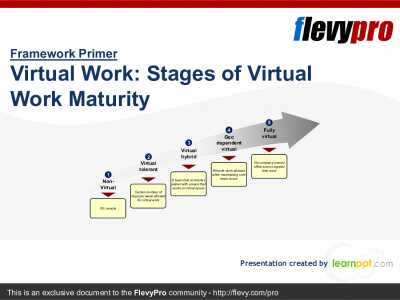
Virtual Work has become the trend of the future. In fact, 37% of the offices globally are working on hybrid-remote arrangements while 26% are 100% remote with people working in their own time. There is also about 25% of the companies that allow or tolerate virtual work with 12% that is 100% [read more]
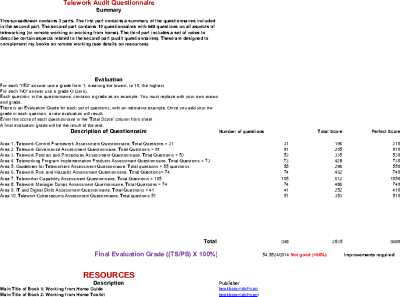
The purpose of this tool (spreadsheet) is to review, audit, assess and improve all teleworking aspects of companies, organizations and remote workers.
This spreadsheet contains 3 parts. The first part contains a summary of the questionnaires included in the second part. The second part [read more]
The global COVID-19 pandemic has forced organizations to rapidly adopt virtual work environments, making it the new norm. Digital Collaboration Platforms have been pivotal in the current scenario and have forever changed future work environment. Digital Collaboration Platforms is the new wave in [read more]
The global COVID-19 pandemic has forced organizations to rapidly adopt virtual work environments, making it the new norm. Digital Collaboration Platforms have been pivotal in the current scenario and have forever changed future work environment.
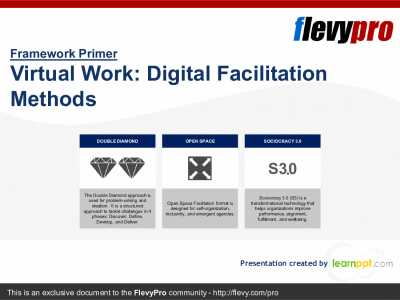
Digital Facilitation has its own set of [read more]