Editor's Note: Take a look at our featured best practice, Storyboarding and Presentation Writing (33-slide PowerPoint presentation). You may have heard that management consultants spend the majority of their time cranking out PowerPoint slides. There is much truth to do this--and for good reason.
A PowerPoint presentation is not only a great communication tool, it is also the form of most consulting deliverables--i.e. the [read more]
* * * *
Let’s face it: PowerPoint has been around longer than smartphones, TikTok reels, and even Google. PowerPoint first showed up in 1987, when Sony Walkmans were the height of technology.
And here’s the kicker: while Walkmans are now museum pieces, PowerPoint is still rocking the stage.
Why? Because it’s like that trusty Swiss Army knife hiding in your kitchen drawer. You don’t always think about it, but it’s there when you need it to open bottles, tighten screws, or save the day.
PowerPoint does the same with presentations: always ready, always versatile, and, with the right tricks, way more fun than you might expect. The problem though is that you may not understand how you can use PowerPoint in a way that’s effective and quick at the same time. In this post, we’ll walk you through five quick ideas that will help you look like a PowerPoint wizard, even if you’ve only just opened the program for the first time.
1. Use Slide Masters to Save Your Sanity
Imagine cooking spaghetti for a family dinner. If you boil each strand separately, you’ll spend all night in the kitchen and end up with burnt noodles. Instead, you dump them all into one pot, stir, and—voilà—dinner is served.
That’s exactly what Slide Masters do for PowerPoint. Instead of formatting every single slide one by one (fonts, colors, logos, footers), you can make changes once in the Slide Master, and every slide inherits the same look. It’s the “one pot pasta” of presentation design.
How to use Slide Masters:
It is best that you start experimenting with small changes and then evolve to change more. Follow these steps to make changes using the Slide Master:
Go to the View tab of the Ribbon and click the Slide Master button.
Doing so gets you from your editing view to Slide Master view. Here, on the left pane, you will find a larger thumbnail which is the Slide Master. The smaller thumbnails below the larger one are Slide Layouts. It’s best to first click on the larger thumbnail so that you now edit the Slide Master.
Change the location of any placeholders. You can also change font sizes or add your logo to the Slide Master.
Close the Slide Master view. To do so, go to the View tab of the Ribbon and click the Normal button (this is typically the leftmost button in the View tab.
Any changes you made will reflect in your slides consistently.
Fun Fact: The Slide Master is often the most ignored feature in PowerPoint, but pros swear by it. It’s like owning a dishwasher. Once you have it, you’ll wonder how you ever lived without it.
2. Add SmartArt for Instant Visuals
Ever tried talking about a list without showing the list? It’s like narrating a parade while refusing to let anyone see the floats. Meanwhile, the list is over here clearing its throat, insisting on being introduced properly:
The first item demanding attention
The second item refusing to be ignored
The third item dramatically entering the scene
The fourth item wondering why this wasn’t a list to begin with
At some point, the list stops being a tool and becomes a bore. Yawn.
However, PowerPoint’s SmartArt turns boring lists into diagrams, like family trees, process charts, or pyramids. It’s like turning your grocery list into a comic strip. Suddenly, people pay more attention.
How to add SmartArt Graphics:
Although you can add SmartArt graphics from scratch, they are best created from some existing text, such as bullet points. You then turn the selected text into SmartArt. Here’s one way to do so:
Select all the text that you want to use for your SmartArt graphic.
Go to the Insert tab of the Ribbon and click the SmartArt button.
You will summon a dialog box full of SmartArt graphic choices. Choose from options like cycles, hierarchies, or lists.
Click the OK button.
Similarly, play around with more bullet points, until your boring text becomes eye candy.
Fun Fact: SmartArt was introduced in PowerPoint 2007, the same year Apple released the first iPhone. That means while you were learning to pinch-zoom, PowerPoint was learning to auto-diagram.
3. Try Morph for Magic-Like Transitions
If you ever dreamed of being a magician but failed at pulling rabbits out of hats, PowerPoint’s Morph transition has your back. Morph makes objects move smoothly from one slide to another, like they’re alive.
For example, you can show a map on one slide, zoom into a country on the next, and let Morph glide the audience’s eyes right where you want them. It feels less like “click, click, click” and more like “sit back and enjoy the show.”
How to ‘Morph’ between slides:
Although Morph’s results may look like animated objects, it is essentially a transition, a movement type where one slides changes into another.
Here’s an easy way to get started with the Morph transition:
Start with an existing slide. Now, duplicate this slide.
On the second, duplicated slide, you can move, resize, or recolor objects. Try to begin with small changes.
Go to the Transitions tab of the Ribbon and click the Morph button.
Play your slides and appreciate the quick movement.
Fun Fact: Morph was first introduced in Office 2016. Before that, people had to manually animate every movement. That’s like washing clothes by hand before the washing machine showed up.
4. Use Icons and Stock Images without Leaving PowerPoint
Remember when clip art ruled the world? Little stick figures doing karate chops or holding giant pencils? Cute in 1995, cringey in 2025. Luckily, PowerPoint now comes with built-in icons, stock photos, and cutout people. No need to Google random images and risk downloading a virus from the “Free-Images-Totally-Not-Suspicious” website.
However, you need to be using a subscription-based version of Microsoft Office to get access to the huge collection of visuals.
Get Visuals within PowerPoint:
Go to the slide where you want to add a visual.
Go to the Insert tab of the Ribbon and click on Pictures | Stock Images.
You will see the Stock Images window where you can choose from thousands of professional images. Or you can type a keyword and search images.
In the ensuing results, click on any number of image or icon thumbnails to choose them.
Finally, click the Insert button to drop them into your slides.
Fun Fact: The visuals library updates constantly, so you might even spot quirky modern symbols like electric scooters, fidget spinners, or bubble tea. PowerPoint is trendier than you think.
5. Turn Your Presentation into a Video
Imagine this: You’ve spent hours polishing your presentation, but your audience can’t all attend the meeting. Do you keep repeating the presentation like a broken record? Nope. PowerPoint lets you export your slides as a video.
Yes, this could be better if you add narration, but even without narration, something would be better than nothing.
Create Videos of Your Slides:
Follow these steps to create video clips of some or all of your PowerPoint slides:
First, ensure that you have all your slides ready. Do you want to send all slides? If not, create a new subset presentation of the slides you want to share, and save as a new presentation.
Now, go to File | Export | Create a Video.
Choose your resolution (HD for most, 4K if you want to look extra fancy).
Opt to add timings or narrations if you like.
Hit the Create Video button, and you’ve got a ready-to-share MP4 file.
Fun Fact: PowerPoint has powered NASA mission briefings, reminding us that the same tool used for status meetings can also support spaceflight decisions.
Wrapping It Up (With a Bow)
PowerPoint isn’t just about “Next slide, please.” It’s about telling a story in a way that sticks. With these five ideas—Slide Masters, SmartArt, Morph, Icons, and Video—you’ve got tools that save time, wow audiences, and keep you sane. They also help in explaining your message and highlighting your story.
Think of PowerPoint as Lego blocks. You can use it to build a simple house (boring, but functional), or you can use the same blocks to build skyscrapers. The choice is yours.
And here’s a bonus takeaway: Have fun with PowerPoint. Presentations don’t need to be corporate sleep inducers. They can be colorful, playful, and even downright entertaining. After all, if people can watch cat videos for hours, they can surely enjoy your slides for ten minutes—if you give them a compelling reason to.
More about Geetesh
Based in Hyderabad, India, Geetesh is also the author of six books. Outside of his professional work, Geetesh enjoys reading, photography, and exploring global cuisines through travel and culinary classes. Beyond Indezine, you can follow him on social media here: LinkedIn, YouTube, and Instagram.
Clarity is critical in business communication of all kinds, yet difficult to achieve.
To add insult, clarity is necessary, but not sufficient.
Powerful professional communication must also deliver an insightful message, while often prepared in collaboration with others and under great [read more]
Do You Want to Implement Business Best Practices?
You can download in-depth presentations on Presentation Development and 100s of management topics from the FlevyPro Library. FlevyPro is trusted and utilized by 1000s of management consultants and corporate executives.
For even more best practices available on Flevy, have a look at our top 100 lists:
These best practices are of the same as those leveraged by top-tier management consulting firms, like McKinsey, BCG, Bain, and Accenture. Improve the growth and efficiency of your organization by utilizing these best practice frameworks, templates, and tools. Most were developed by seasoned executives and consultants with over 20+ years of experience.
Readers of This Article Are Interested in These Resources
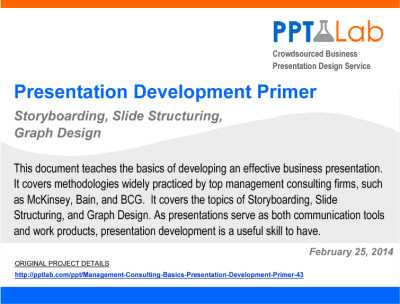
This document teaches the basics of developing an effective business presentation. It covers methodologies widely practiced by top management consulting firms, such as McKinsey, Bain, and BCG. This document is divided into 3 sections:
Storyboarding. Storyboarding refers to developing the [read more]
This presentation talks to the topics of structure communication, presentation development, and storyboarding. These topics related to formulating a cohesive, powerful business presentation.
This document dives deep into the essential elements of structured communication, ensuring your message [read more]
This PowerPoint deck introduces the seven most commonly used storyline patterns in business and explains how to transform each one into a PowerPoint deck of its own.
Based on the Pyramid Principle, each of these seven patterns help you clarify your thinking around an important business issue so [read more]
Many professionals jump into their PowerPoint before thinking through their messaging.
In my experience, this leads to muddled messaging and extensive rework. The messaging gets lost in page after elegant page, many of which become redundant as the messaging slowly bubbles to the surface.
I [read more]
 PowerPoint does the same with presentations: always ready, always versatile, and, with the right tricks, way more fun than you might expect. The problem though is that you may not understand how you can use PowerPoint in a way that’s effective and quick at the same time. In this post, we’ll walk you through five quick ideas that will help you look like a PowerPoint wizard, even if you’ve only just opened the program for the first time.
 More about Geetesh